How to Add a Native Rich Text Editor in Your Expo App
Add a fast, fully native rich text editor to your Expo or React Native app using expo-rte, no WebView required, with formatting, toolbars, and undo/redo.
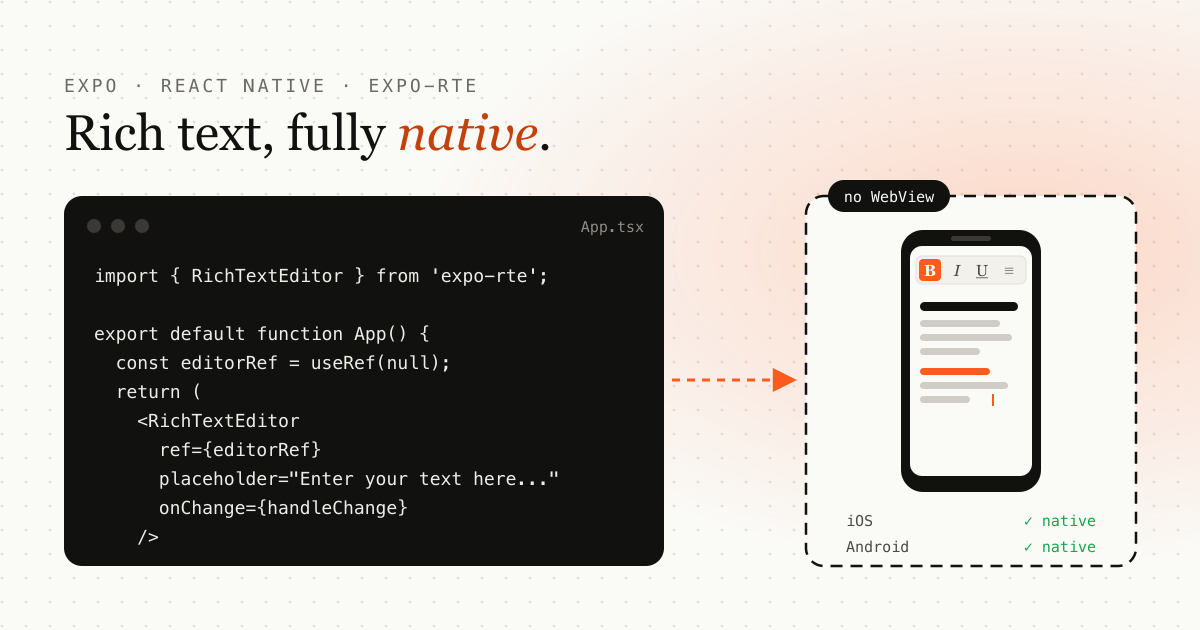
TL;DR: install expo-rte, make a development build (Expo Go won’t work), render <RichTextEditor /> and configure the toolbar. You get a native rich text editor with no WebView.
Rich text editing in React Native has always been tricky, especially when you want native performance instead of a WebView. Most libraries work well on the web but fall short on mobile.
expo-rte is a pure native rich text editor for Expo and React Native, built with expo-modules, Kotlin and Swift. It has no WebView and works on iOS and Android.
Why expo-rte?
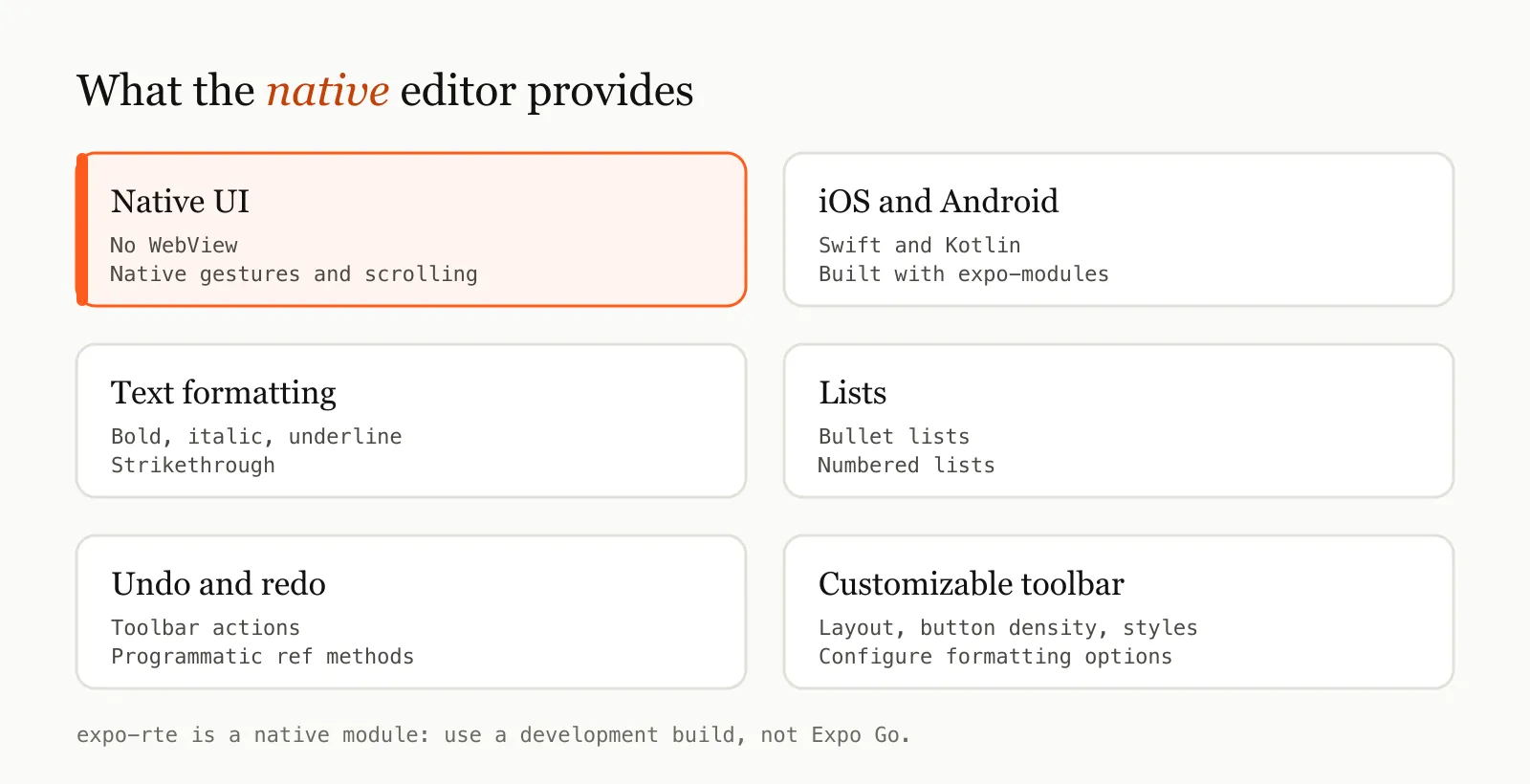
- Pure native UI: smooth scrolling and native gestures, with no WebView overhead.
- Cross-platform: works on iOS and Android.
- Feature-rich: bold, italic, underline, strikethrough, bullet and numbered lists, undo/redo and more.
- Customizable: configure the toolbar layout, button density and styles.
Install expo-rte
npm install expo-rte
# or
yarn add expo-rte
Because it’s a native module, you need a development build. Expo Go won’t work:
npx expo run:ios
npx expo run:android
If the build can’t reach Metro on your machine, see how to fix the Expo “network response timed out” error.
Add the editor to your app
Create a simple editor screen:
import React, { useRef } from 'react';
import { View } from 'react-native';
import { RichTextEditor, RichTextEditorRef } from 'expo-rte';

export default function App() {
  const editorRef = useRef<RichTextEditorRef>(null);

  const handleChange = ({ nativeEvent }) => {
    console.log('Content:', nativeEvent.content);
  };

  return (
    <View style={{ flex: 1, padding: 20 }}>
      <RichTextEditor
        ref={editorRef}
        content="<p>Start typing...</p>"
        placeholder="Enter your text here..."
        onChange={handleChange}
        style={{ height: 300 }}
      />
    </View>
  );
}
Customize the toolbar
expo-rte lets you control which formatting options appear:
import { ToolbarConfig } from 'expo-rte';

const toolbarConfig: ToolbarConfig = {
  adaptive: true,
  density: 'comfortable',
  scrollable: true,
  groupButtons: true,
  buttons: [
    { type: 'bold', icon: 'B', label: 'Bold', group: 'format' },
    { type: 'italic', icon: 'I', label: 'Italic', group: 'format' },
    { type: 'underline', icon: 'U', label: 'Underline', group: 'format' },
    { type: 'bullet', icon: '•', label: 'Bullet List', group: 'list' },
    { type: 'numbered', icon: '1.', label: 'Numbered List', group: 'list' },
    { type: 'undo', icon: '↶', label: 'Undo', group: 'action' },
    { type: 'redo', icon: '↷', label: 'Redo', group: 'action' },
  ],
};
Pass it into the editor:
<RichTextEditor toolbarConfig={toolbarConfig} />Control the editor programmatically
With a ref, you can set and read content and use undo and redo:
editorRef.current?.setContent('<p>New content</p>');
const html = await editorRef.current?.getContent();
editorRef.current?.undo();
editorRef.current?.redo();
Troubleshooting
- Editor not showing? Make sure you’re using a development build.
- Buttons not working? Check your
toolbarConfig. - Performance issues? Enable
adaptive: truein the toolbar config.
Conclusion
With expo-rte you can add a native rich text editor to your Expo or React Native app with no WebView. It’s fast, customizable and works on iOS and Android.
Full docs and source code: github.com/mdadul/expo-rte
Frequently asked questions
Does expo-rte work in Expo Go?
No. It's a native module, so you need a development build. Run npx expo run:ios or npx expo run:android.
Does it use a WebView?
No. expo-rte renders a native editor on each platform, built with Swift on iOS and Kotlin on Android through expo-modules.
How do I read the editor's content?
Use a ref and call getContent(), which returns the HTML. You can also listen to the onChange event.
Emdadul Islam
I build web, mobile and backend products, and write up what I learn along the way: the bugs, the trade-offs and the fixes that held up in production. More about me →
Next article
How to Fix the Expo "Network Response Timed Out" Error
Fix the Expo Metro bundler network response timed out error by opening the correct port on your machine.